

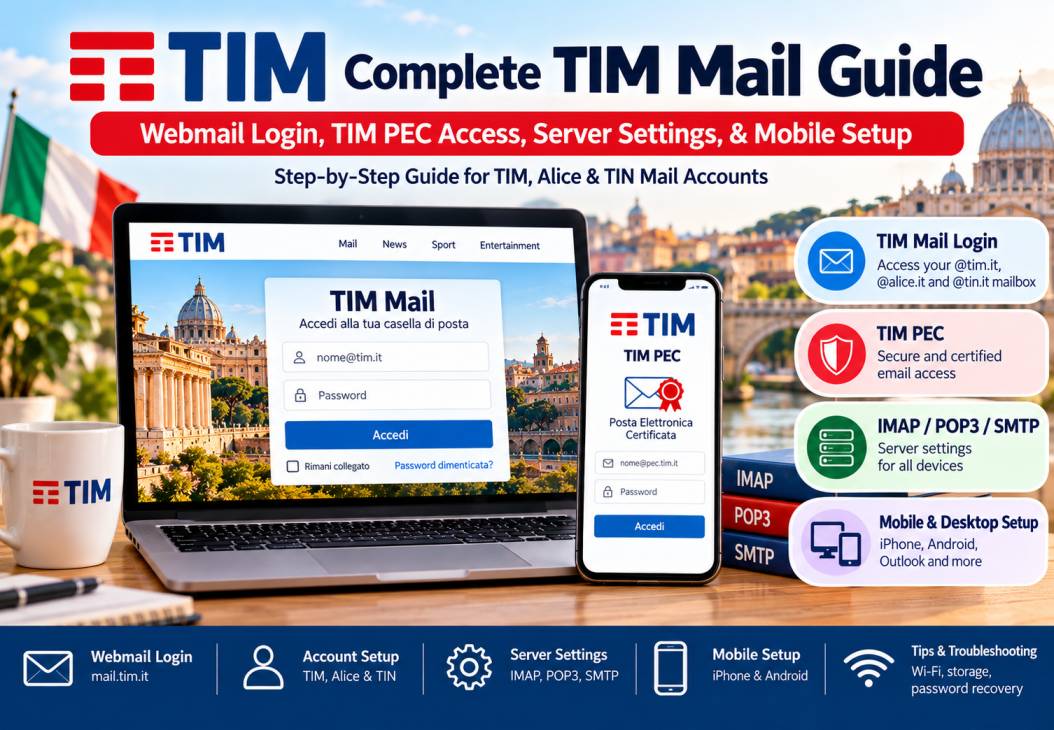
Need help with TIM Login Mail, Alice Mail, or TIM PEC? You can access your inbox through a browser, read messages on your phone, or connect your account to Outlook and other email clients.
TIM Mail supports addresses such as @tim.it, @alice.it, and @tin.it. TIM PEC is a separate certified email service that provides sending and delivery receipts for formal communications.
This guide explains how to use TIM Mail Accedi, recover a forgotten password, manage your mailbox, access TIM PEC, and configure IMAP, POP3, and SMTP. It includes the official server values for standard mail and certified email.
How to Access TIM Mail & Webmail Login (mail.tim.it)
TIM Mail lets you check your messages through its webmail portal or a compatible email app.
The official login address is mail.tim.it. TIM’s help pages confirm that users can access @tim.it and @alice.it mailboxes through this portal. Accounts with the legacy @tin.it domain have a separate support guide. (TIM Mail access guide)
Step-by-Step Login to TIM Mail & Alice Mail
Follow these steps for TIM Mail login:
- Open TIM Mail.
- Enter your full email address, such as [email protected] or [email protected].
- Enter the password linked to the mailbox.
- Select the login button.
- Wait for your inbox to load.
Use the complete email address, including the domain after @. If you have an older Alice Mail account, keep using your existing @alice.it address rather than creating a new account.
For @tin.it accounts, visit the official TIM Tin.it support page for account access and password help. (TIM Tin.it guide)
Connection note: TIM allows webmail access through a browser on an internet connection. Access through an external email client can depend on whether the mailbox is linked to an active TIM line and which network you use. TIM’s rules for client access are not the same as browser access. (TIM client access rules)
How to Fix TIM Mail Login Issues & Password Recovery
If TIM Mail will not open, check your login details and browser first.
Incorrect credentials: Make sure the email address is complete. Check for typing errors, extra spaces, and Caps Lock.
Forgotten password: Open the official TIM Mail support page and follow the password recovery steps. A recovery mobile number can make this process easier.
No recovery phone: TIM may require its password-reset form and a copy of your identity document to confirm account ownership. Follow the current instructions on TIM’s support site before sending personal documents. (TIM account recovery guide)
Browser errors: Try an updated browser or a private browsing window. Clearing the cache and cookies can help when an old session stops the login page from working.
Mail app stopped working: If you recently changed your password, update it in Outlook, Apple Mail, or your phone’s email app.
For security, check your recent account activity after regaining access. If you notice a sign-in you don’t recognise, change your password and review your recovery details.
Account Storage & Security: Antivirus and Antispam Features
TIM Mail includes tools to manage storage, unwanted messages, and account security.
TIM’s published service information lists 3 GB of mailbox storage and support for attachments of up to 2 GB. Check the current terms for your mailbox or subscription, since available features can depend on the service plan. (TIM Mail information)
To review your mailbox:
- Sign in to TIM Mail.
- Open Impostazioni.
- Select Preferenze mail.
- Check the mailbox size and space in use.
- Delete unwanted messages or empty the trash if space is running low.
TIM Mail has antivirus and antispam protection. Messages marked as spam are placed in a dedicated folder, and TIM documents automatic deletion of spam after 20 days. You can block unwanted senders, create rules, set up automatic forwarding, and configure an absence message. (TIM Mail settings guide, TIM Mail service information)
Be careful with filters. A rule that redirects or deletes mail can hide messages you need. If you stop receiving expected messages, review your filters and blocked-sender list.
TIM PEC Login & Portal Management
TIM PEC means Posta Elettronica Certificata, or certified email.
It offers a formal way to send messages through the Italian PEC system. The service provides acceptance and delivery receipts, which can serve as evidence of sending and delivery. (Official TIM PEC service)
Accessing Webmail TIM PEC (webmail.pectim.it)
Use the official TIM PEC Webmail portal.
- Open the portal.
- Enter your PEC username or full PEC email address, as accepted by the login page.
- Enter your TIM PEC password.
- Retrieve the one-time password (OTP) sent to your ordinary email address.
- Enter the OTP to complete sign-in.
TIM PEC uses its own login details. Your MyTIM password and standard TIM Mail password are not substitutes for your PEC credentials. (TIM PEC access and security)
If you cannot sign in, use the Hai dimenticato la password? link on the official portal and follow the instructions. You can contact technical support at [email protected] if the recovery process fails. (TIM PEC support)
Two-Factor Authentication (OTP) & Mobile App Management
TIM PEC uses an extra verification step to help protect certified email accounts. When signing in through the web portal, you may need an OTP sent to your ordinary email address.
TIM offers a free TIM PEC app for Android and iOS. The app supports mailbox access, message and receipt folders, notifications, password changes, and biometric access on supported devices. (TIM PEC app and service details)
To set up the app:
- Download TIM PEC from the Google Play Store or Apple App Store.
- Check that the app is published by the official provider.
- Open it and enter your PEC credentials.
- Complete any verification step requested.
- Enable notifications and biometric access if you wish and your phone supports them.
The app is useful for checking certified messages on the move. Keep your credentials and verification codes private.
TIM PEC Subscription Plans, Renewals & Storage Options
TIM offers monthly and annual PEC plans. The amount of storage and the payment method depend on the plan and the TIM line used for billing.
TIM’s current service page lists these offers:
| Plan | Storage | Published Price |
| TIM PEC Annual, mobile line | 1 GB | €9.99 per year |
| TIM PEC Monthly, mobile line | 2 GB | €0.99 per month |
| TIM PEC Monthly, fixed line | 2 GB | €0.99 per month |
The annual mobile plan has a promotional first-year price of €6.99 for eligible activations through December 31, 2026. Check TIM’s current TIM PEC plans for the latest terms before subscribing. (TIM PEC offers)
Check the storage left in your mailbox from the webmail or app interface. Save important messages and both acceptance and delivery receipts in a separate backup. Do not rely on your inbox as the only copy of a formal record.
Standard TIM Mail Server Settings: IMAP, POP3 & SMTP
You can configure TIM Mail in Outlook, Thunderbird, Apple Mail, or a compatible mobile app.
Important: TIM’s official configuration page specifies STARTTLS for the standard @tim.it, @alice.it, and @tin.it accounts. Use the port numbers listed below instead of copying SSL values from another provider. (Official TIM IMAP and POP3 guide)
Server Settings for @tim.it Accounts
| Setting | IMAP | POP3 | SMTP |
| Server | imap.tim.it | pop.tim.it | smtp.tim.it |
| Port | 143 | 110 | 587 |
| Security | STARTTLS | STARTTLS | STARTTLS |
| Username | Full email address | Full email address | Full email address |
| Authentication | Required | Required | Required |
IMAP is the better option if you check messages on multiple devices. POP3 downloads messages to a configured device and may remove them from the server, depending on the mail app settings. (TIM protocol guide)
Server Settings for Legacy @alice.it and @tin.it Accounts
Legacy Alice and TIN addresses have their own server names. Choose the values that match your domain.
| Setting | @alice.it | @tin.it |
| IMAP server | in.alice.it | imaps.tin.it |
| IMAP port | 143 | 143 |
| POP3 server | in.alice.it | pops.tin.it |
| POP3 port | 110 | 110 |
| SMTP server | out.alice.it | smtps.tin.it |
| SMTP port | 587 | 587 |
| Security | STARTTLS | STARTTLS |
| Username | Full email address | Full email address |
These are the values in TIM’s official protocol guide. If your email app automatically fills in different ports or encryption, open its advanced settings and check each field. (TIM protocol guide)
Choosing IMAP or POP3
Use IMAP if you want the same inbox on your phone, laptop, and tablet.
Choose POP3 if you prefer downloading mail to one computer. Check whether the app leaves server copies in place before you select it. If messages exist only on a computer, removing the account or changing protocols without a backup can put them at risk.
TIM PEC Server Parameters for Third-Party Email Clients
TIM PEC uses different server names and authentication rules from standard TIM Mail. The official client guide lists these values for third-party software such as Outlook and Thunderbird. (TIM PEC client configuration PDF)
Manual IMAP & SMTP Parameters for TIM PEC
| Setting | IMAP (Incoming) | POP3 (Incoming) | SMTP (Outgoing) |
| Server | imap.pectim.it | pop3s.pectim.it | smtp.pectim.it |
| Port | 993 | 995 | 465 |
| Security | SSL/TLS | SSL/TLS | SSL/TLS |
| Authentication | Required | Required | Required |
TIM PEC has an extra setup step for email clients: You must create a secondary password for client access. Open devicepassword.pectim.it, sign in, complete the required verification, and generate the password. Use it in Outlook, Thunderbird, or another supported app rather than your normal PEC webmail password. (TIM PEC client guide)
The PEC username can require the full PEC email address followed by an asterisk (*) and the username or DN used for webmail access. Follow the exact format shown in TIM’s client guide and on your account. (TIM PEC configuration manual)
Mobile & Desktop Email Setup: iPhone, Android, and Outlook
The menu names depend on your device and app version. If automatic setup does not work, use manual configuration with the settings above.
Official TIM PEC App for iOS & Android
The TIM PEC app is the easiest mobile option for certified email.
After installing it, enter your PEC address and credentials. Complete any OTP step, then enable notifications or biometric sign-in if available on your device.
The app provides access to certified messages and their receipts. Some attachment features may depend on your device and operating system. (TIM PEC service page)
Configuring TIM Mail on iPhone and iPad (iOS Mail App)
- Open Settings.
- Go to Apps → Mail → Mail Accounts. Older versions may show Settings → Mail → Accounts.
- Select Add Account → Other → Add Mail Account.
- Enter your name, full email address, password, and account description.
- Choose IMAP or POP3.
- Enter the matching incoming server and port.
- Enter the correct outgoing SMTP server and port.
- Select STARTTLS or TLS as supported by the app.
- Save the account and send a test message.
For a PEC mailbox, use the PEC-specific settings and secondary password. Do not use the standard @tim.it server names for TIM PEC.
Configuring TIM Mail on Android & Microsoft Outlook
Gmail on Android
- Open Gmail and tap your profile icon.
- Choose Add another account → Other.
- Enter your full TIM, Alice, or TIN address.
- Select IMAP or POP3.
- Enter the server name and port for your domain.
- Set the correct STARTTLS security option.
- Enter the outgoing SMTP details and enable authentication.
- Save the account and test sending and receiving.
Microsoft Outlook
- Open Outlook and select Add Account.
- Enter your full email address.
- Choose manual configuration if needed.
- Select IMAP or POP3.
- Enter the incoming server and port for your email domain.
- Enter the outgoing SMTP server on port 587.
- Enable SMTP authentication and use the same username as for incoming mail.
- Save the account and test the connection.
For TIM PEC, use the dedicated PEC servers and secondary password. If you have trouble with the setup, check TIM’s official PC configuration guide or mobile setup guide.
Final Checklist for TIM Mail and TIM PEC
Before finishing your setup, check these points:
- Use mail.tim.it for standard TIM Mail.
- Use webmail.pectim.it for TIM PEC.
- Keep your standard mail and PEC passwords separate.
- Choose IMAP for synchronised access across devices.
- Use the official STARTTLS ports for standard TIM, Alice, and TIN mailboxes.
- Use SSL/TLS and a secondary password for TIM PEC client access.
- Update saved passwords after a reset.
- Keep important PEC messages and receipts backed up.
With the correct settings, TIM Mail and legacy Alice and TIN addresses can work in supported email clients. TIM PEC needs extra care because its secondary password and receipts are part of the certified mail setup. If an issue remains, use the official TIM Mail support centre or the TIM PEC service page.